

Set up Autopilot
Setting up an autopilot takes a couple of minutes. You only need to choose a channel, a budget and a card. Everything else has sensible defaults that you can change under Advanced settings.
Create an autopilot
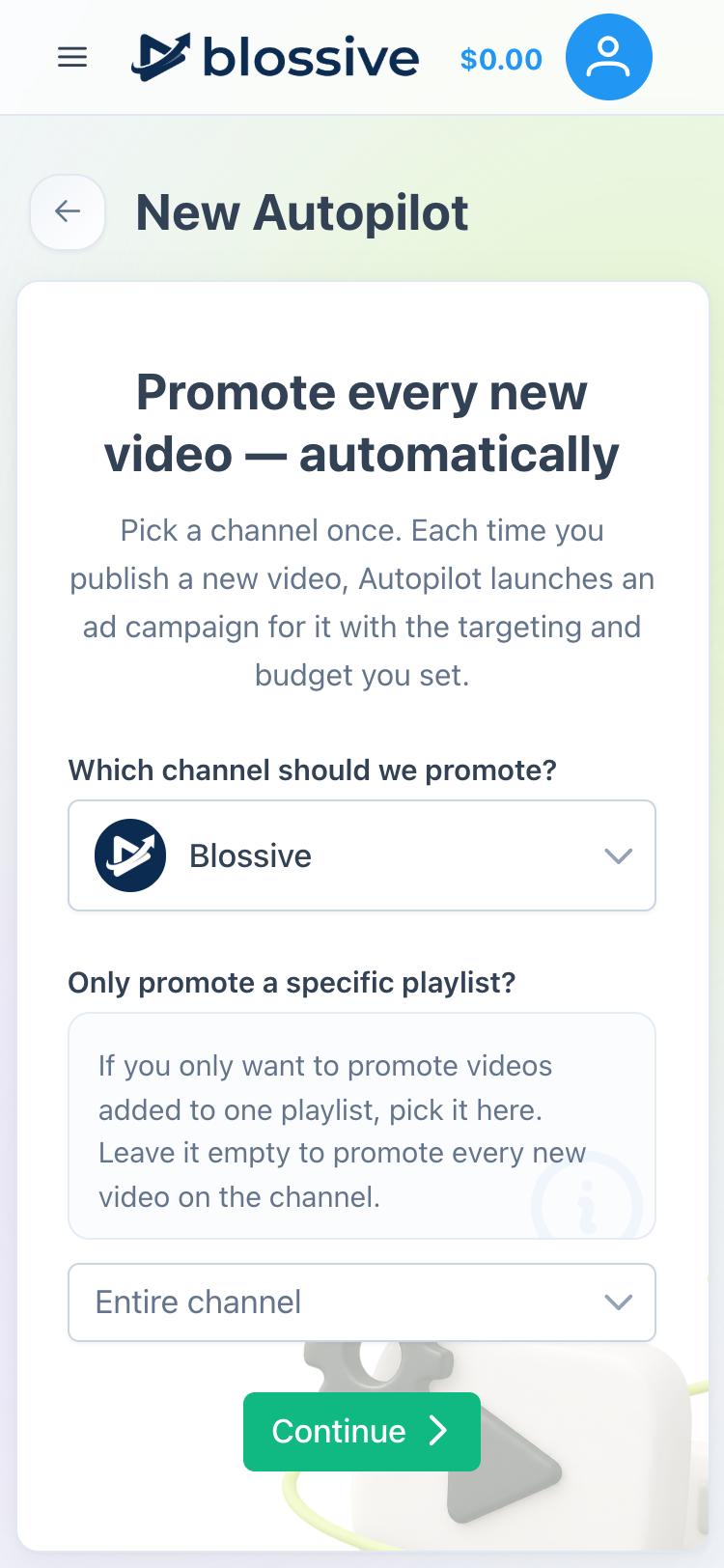
Choose a channel
- Tap the menu icon (☰) and choose Autopilot.
- Tap New Autopilot.
- Under Which channel should we promote?, pick your channel. If it isn't added yet, choose Add New Channel.
- Optional: under Only promote a specific playlist?, pick a playlist. Autopilot will then promote only videos added to that playlist. Leave it empty to promote every new video on the channel.
- Tap Continue.
Check the basics
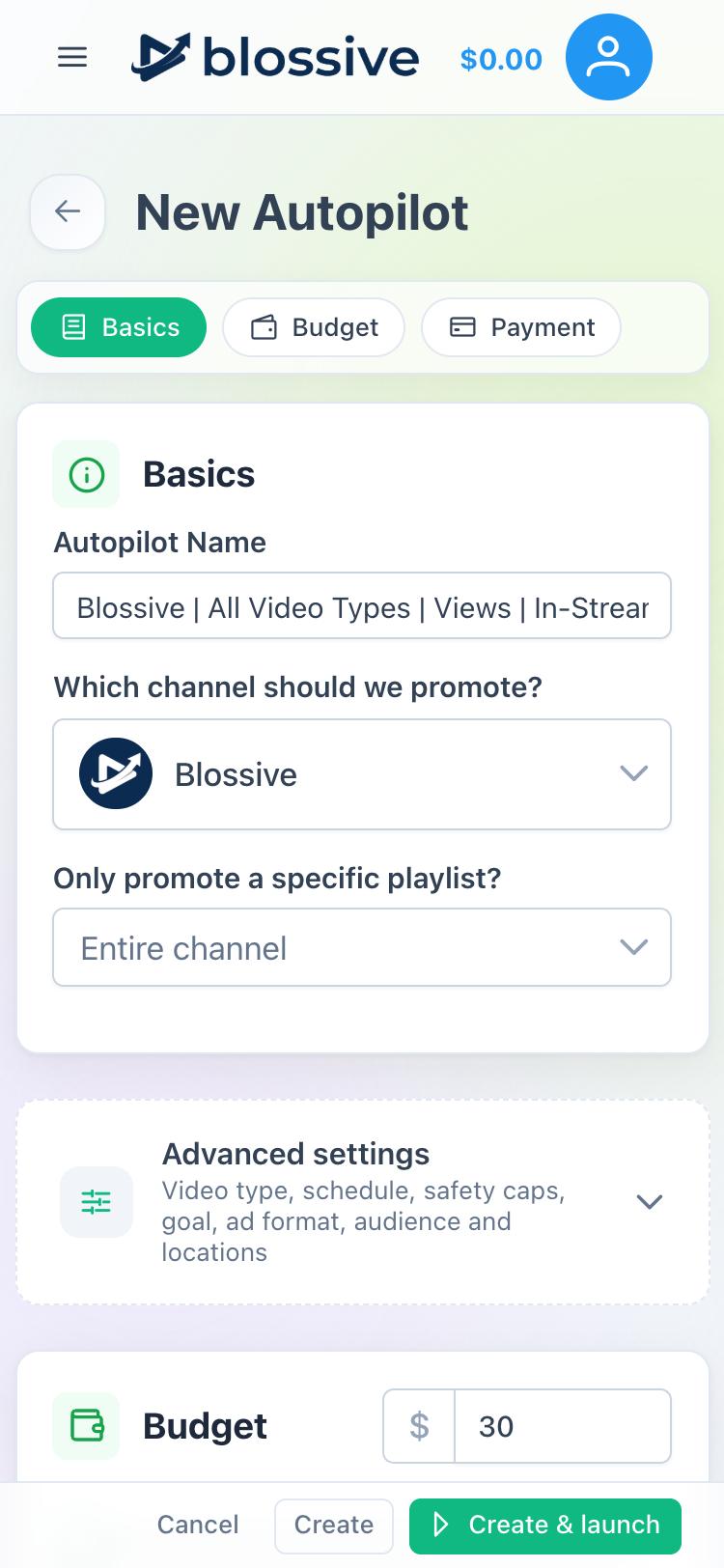
The setup form opens. Use the row of buttons at the top (Basics, Budget, Payment) to jump between sections.
Autopilot Name is filled in from your choices, for example "Blossive | All Video Types | Views | In-Stream, In-Feed, Shorts". You can change it to anything that helps you tell your autopilots apart.
Set the budget
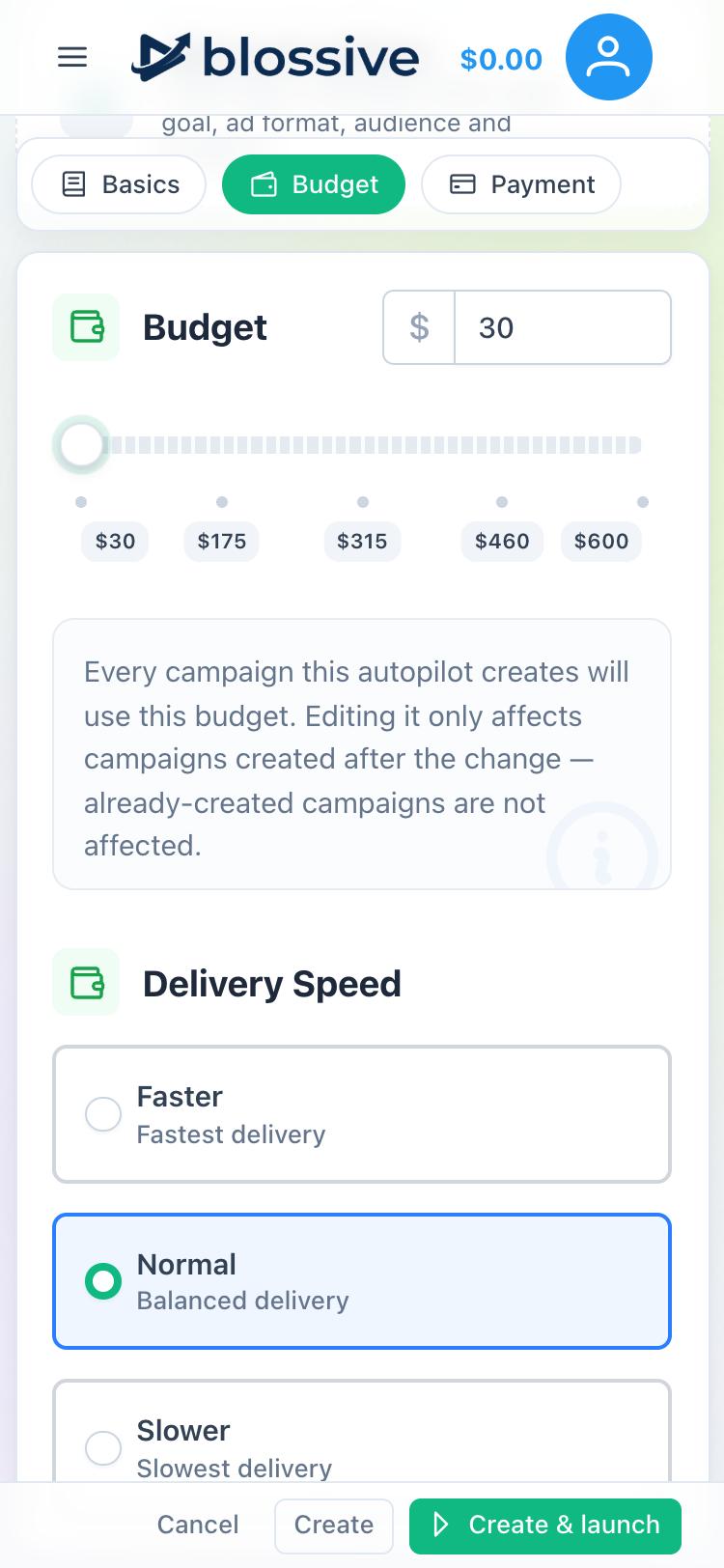
- Under Budget, enter an amount or use the slider. This is the budget of each campaign the autopilot launches, so one new video costs this amount. The minimum budget for new users is $30.
- Under Delivery Speed, choose Faster, Normal or Slower.
Changing the budget later only affects campaigns created after the change.
Choose a card
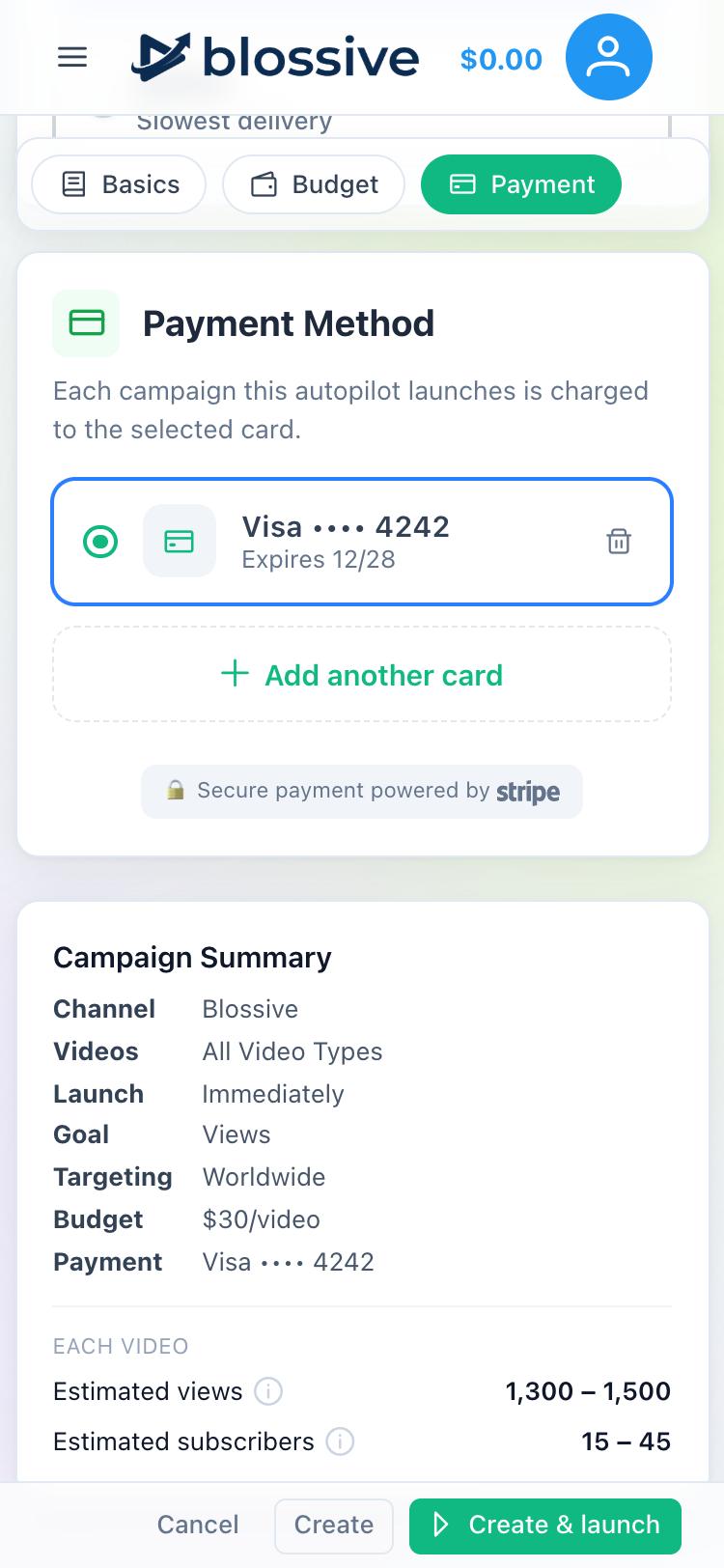
Under Payment Method, select a saved card or tap Add another card. Each campaign this autopilot launches is charged to the selected card. Payments are processed by Stripe.
Create the autopilot
Check the Campaign Summary at the bottom of the form, then use the buttons at the bottom of the screen:
- Create & launch: save the autopilot and start it right away.
- Create: save it without starting it. To start it later, tap ⋮ on its card and choose Resume.
- Cancel: leave without saving.
Advanced settings
Tap Advanced settings to fine-tune the autopilot. All of these are optional.
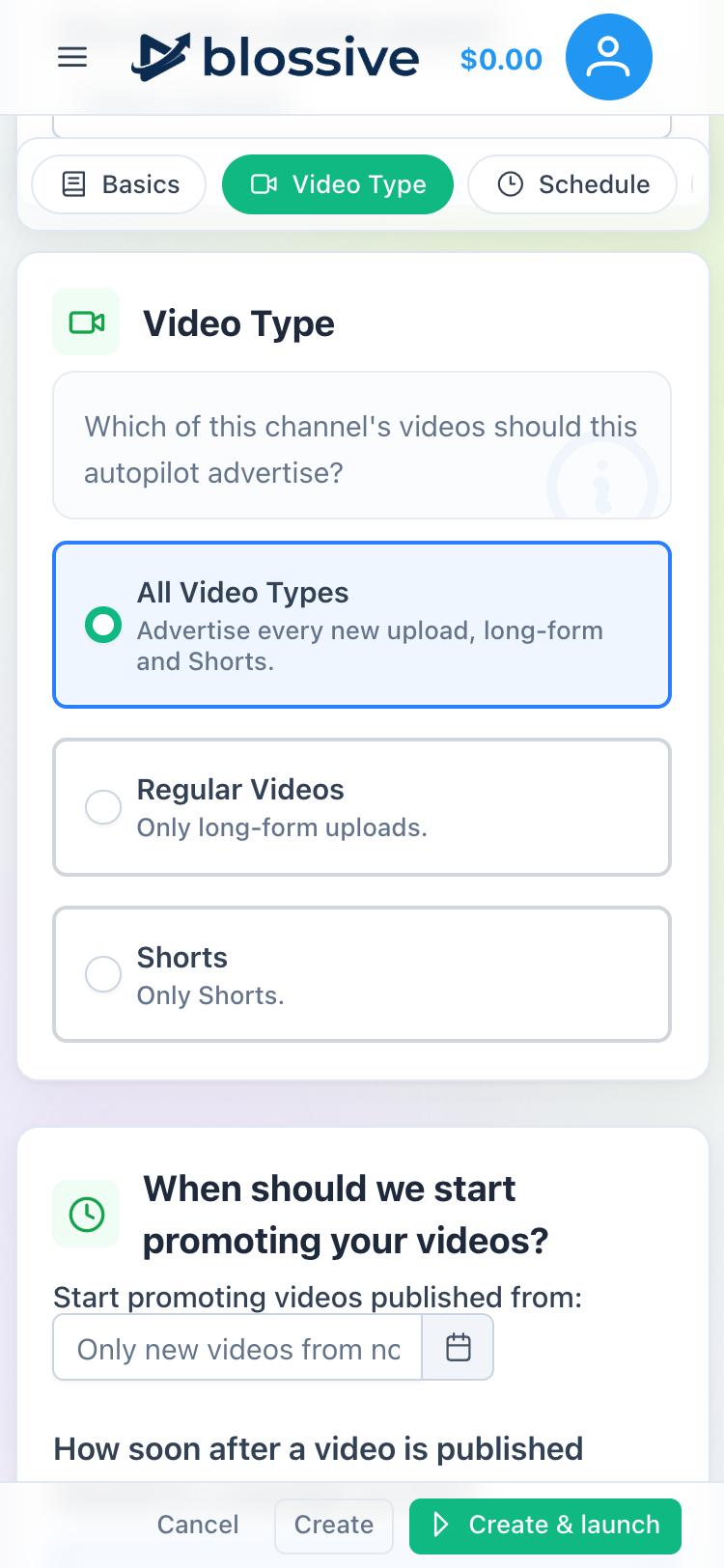
Video Type
Choose which new videos to promote:
- All Video Types: long-form videos and Shorts.
- Regular Videos: only long-form videos.
- Shorts: only Shorts. With this option, only the YouTube Shorts ad format is used.
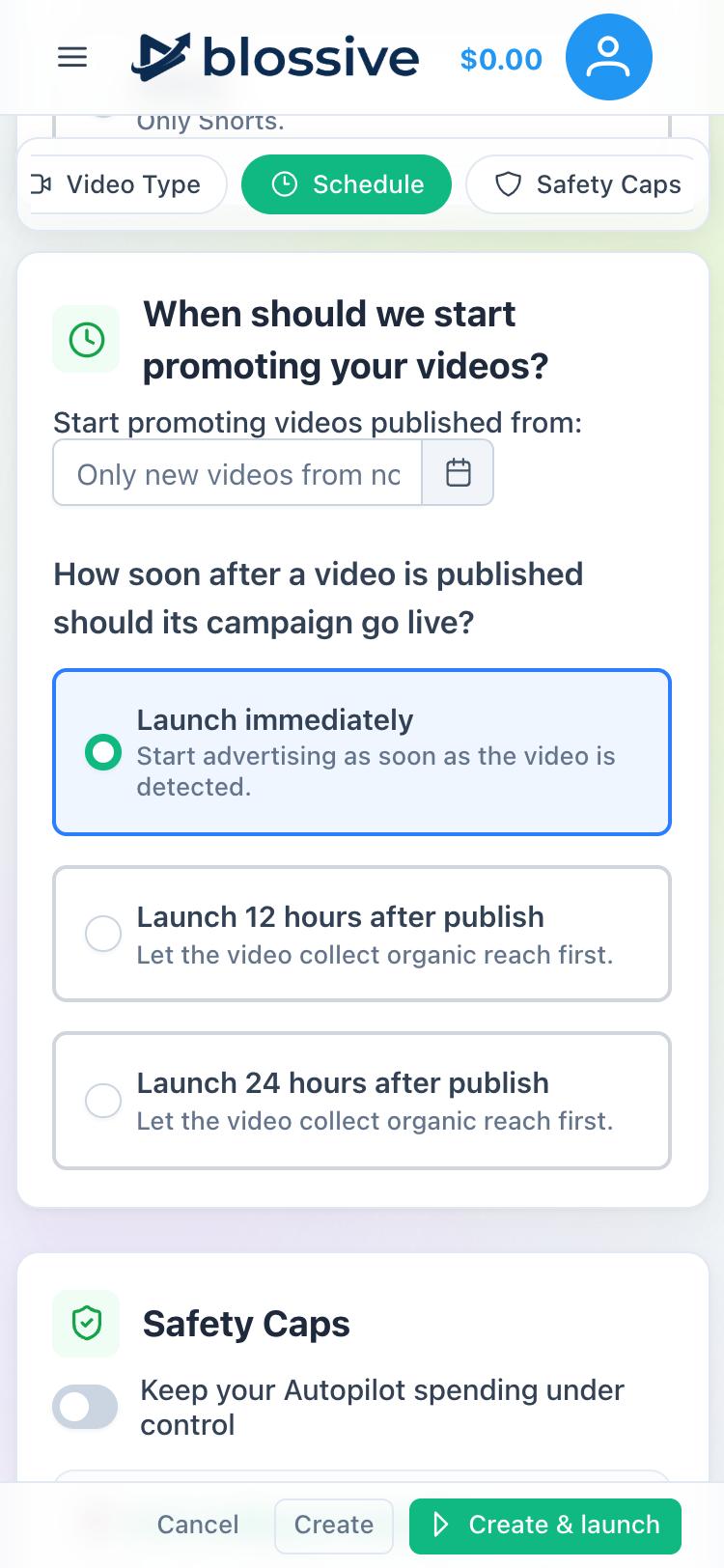
Schedule
- Start promoting videos published from: leave it empty to promote only videos published from now on. If you pick a past date, campaigns are also created for videos uploaded since that date, and your card is charged for each of them.
- How soon after a video is published should its campaign go live?: Launch immediately, Launch 12 hours after publish or Launch 24 hours after publish. A delay lets the video collect organic reach first.
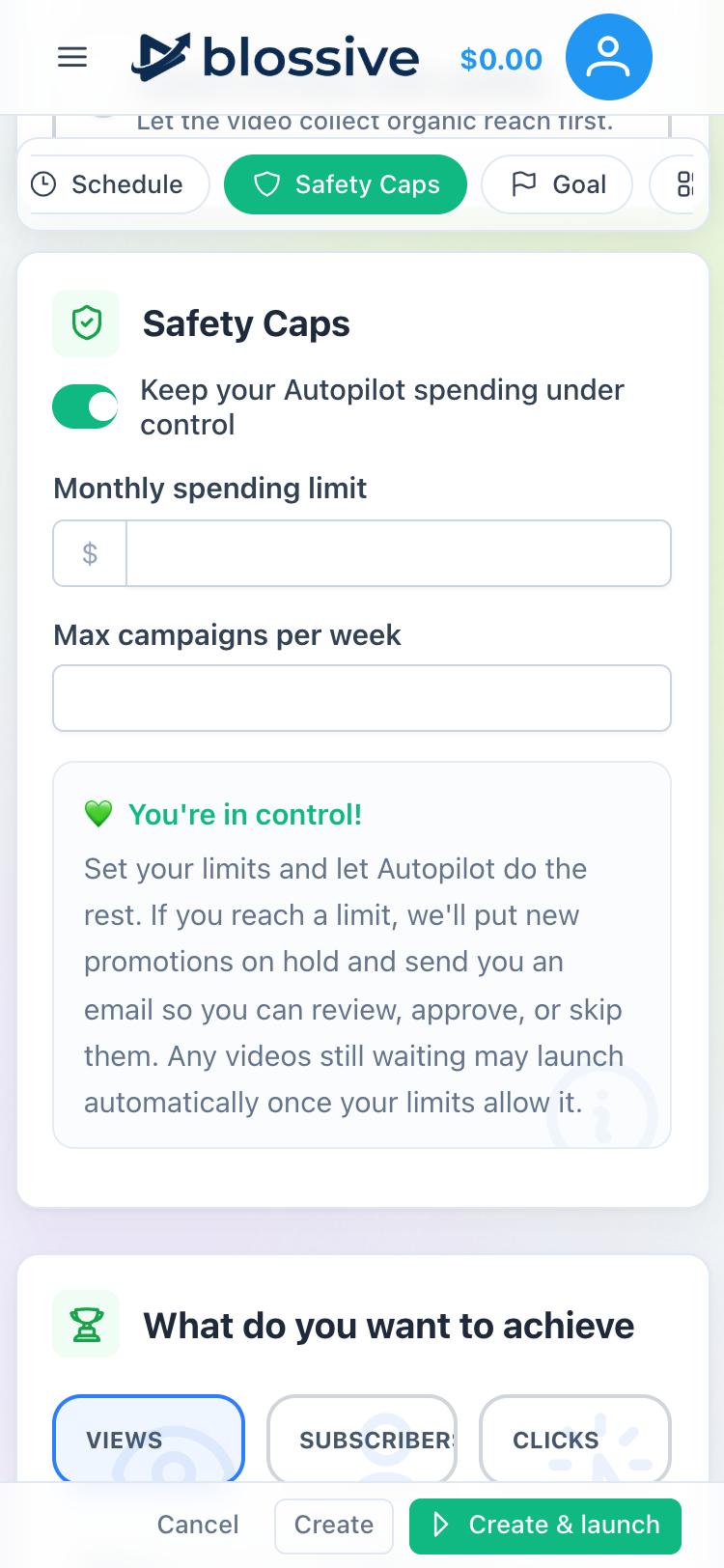
Safety Caps
Turn on Keep your Autopilot spending under control to set:
- Monthly spending limit: the most Autopilot can spend in a calendar month.
- Max campaigns per week: the most campaigns it can launch in 7 days.
When a limit is reached, new videos are put on hold and you get an email so you can approve or skip them. See Review Autopilot videos.
Goal
Choose what you want to achieve:
- Views: the ad gives viewers a link to continue watching your video.
- Subscribers: the ad gives viewers a link to subscribe to your channel.
- Clicks: the ad sends viewers to your website. Choose the Website type and enter a link to your page.
Ad Format, Demographics and Locations
These work the same way as in a regular campaign:
- Ad Format: YouTube In-Stream, YouTube In-Feed and YouTube Shorts. All three are on by default. Combining them increases your reach.
- Demographics: the gender and age range of your audience.
- Target Locations: countries, regions or cities to show your ads in. Leave it empty to target the whole world. Targeting a smaller area means fewer views for the same budget.
Change an autopilot later
Tap ⋮ on the autopilot card and choose Edit.... Make your changes and tap Save. On an active autopilot you can also tap Pause at the bottom of the form.