
How Autopilot works
Autopilot promotes your new videos for you. You pick a channel once and set the targeting and budget. Each time you publish a new video, Autopilot detects it and launches a Blossive campaign for it with those settings. You don't have to create a campaign by hand for every upload.
How it works
You set up an autopilot
Choose a channel (and, if you want, one playlist), a budget per video and a card to pay with. See Set up Autopilot.
You publish a new video
Autopilot regularly checks your channel for new uploads that match your settings: all videos, only regular videos or only Shorts.
Autopilot launches a campaign
It creates a campaign for the video with your goal, ad formats, audience and budget, and charges the campaign budget to the card you chose. You can launch right away, or 12 or 24 hours after the video is published.
You follow the results
Each campaign appears on the Campaigns page like any other campaign, with its own stats.
Your autopilots
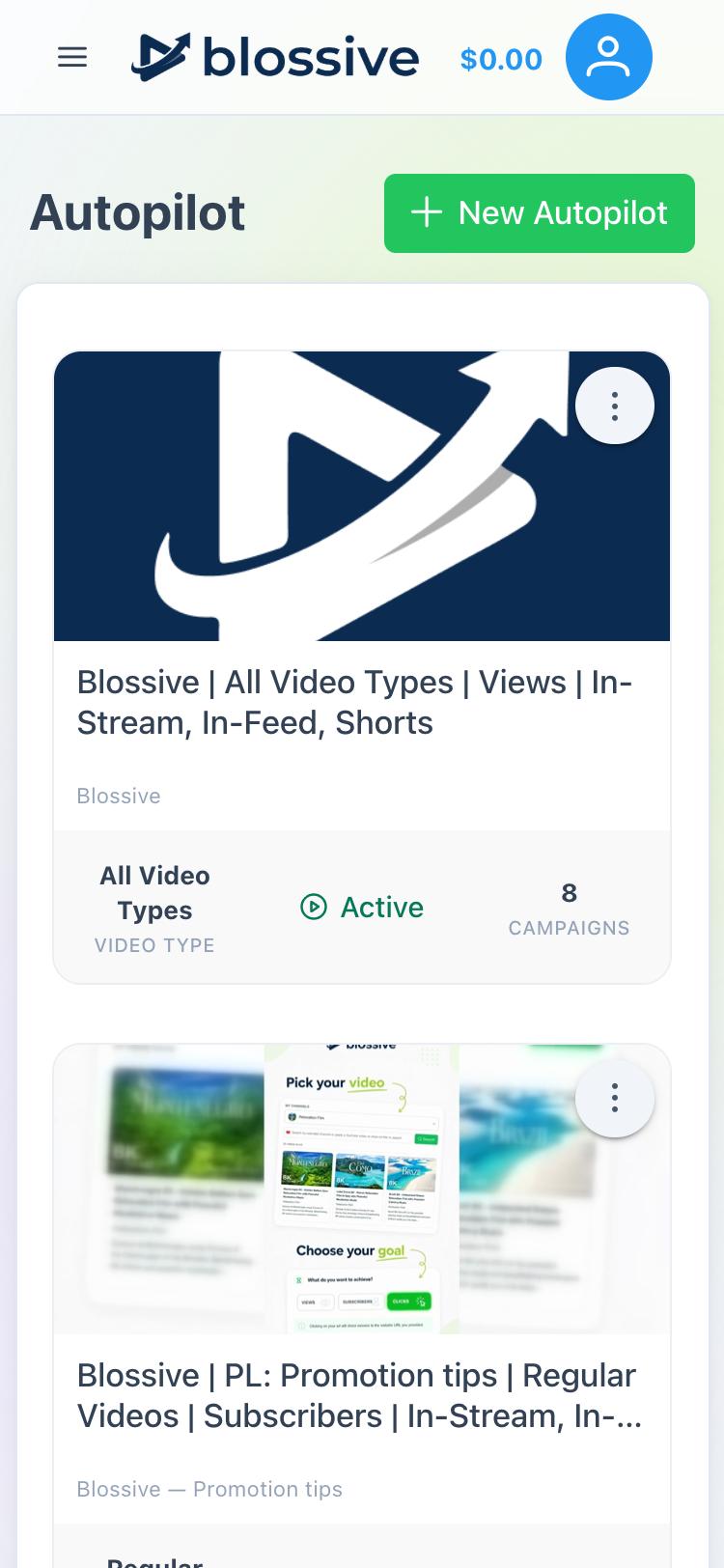
To open your autopilots, tap the menu icon (☰) and choose Autopilot. Each autopilot is shown as a card with:
- the channel or playlist image and the autopilot name
- Video Type: which videos it promotes
- its status
- Campaigns: how many campaigns it has launched so far
Statuses
| Status | What it means |
|---|---|
| Active | Autopilot is running and launches a campaign for every new matching video. |
| Paused | You paused it. No new campaigns are launched until you resume it. |
| Draft | It was saved without a card, so it doesn't launch campaigns. Choose a card to activate it. |
| Needs attention | It stopped because of a payment problem. Choose a working card and save the autopilot to resume. |
Pause, edit or delete an autopilot
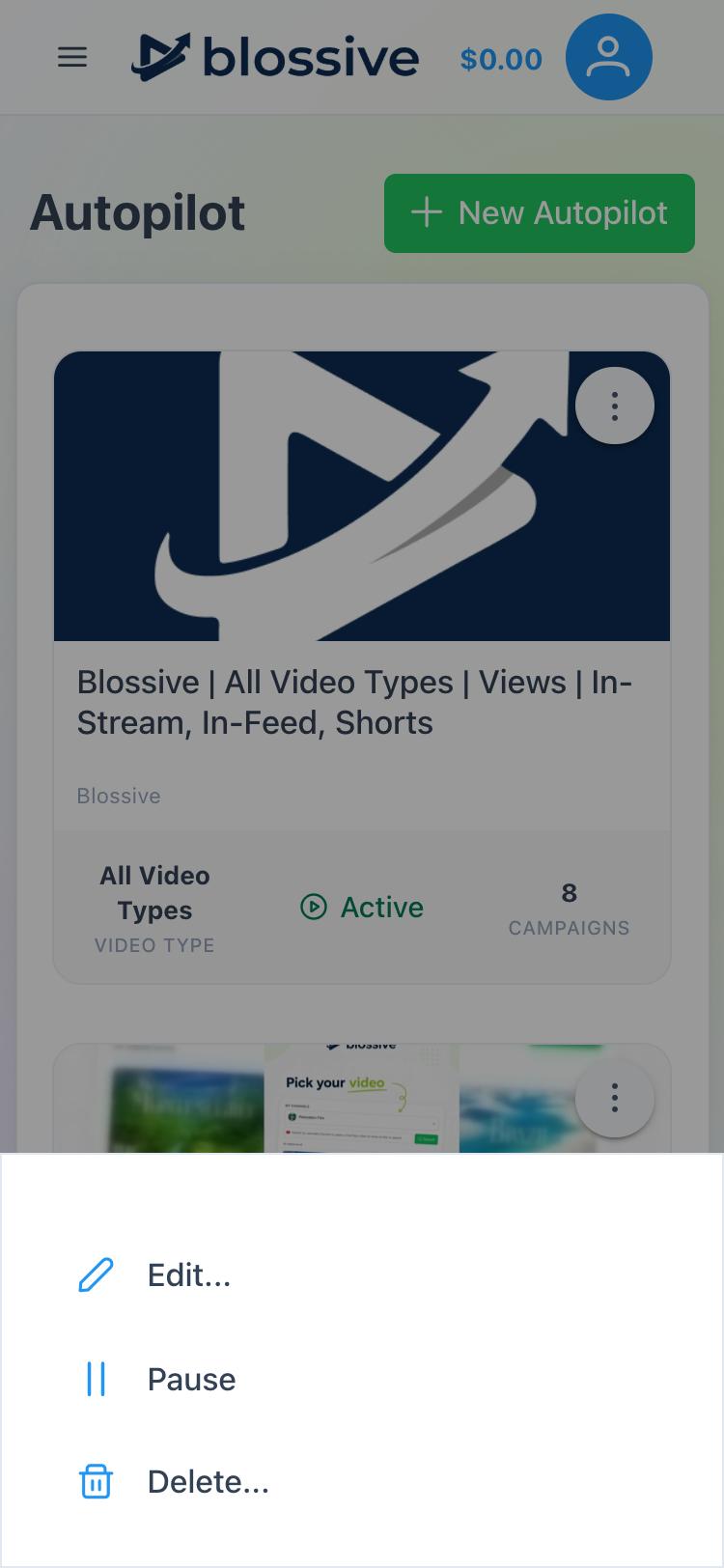
Tap ⋮ on an autopilot card to open its actions:
- Edit...: change any setting. Budget changes apply only to campaigns created after the change.
- Pause or Resume: stop or restart launching new campaigns. Campaigns that are already running are not affected.
- Choose a card...: shown instead of Pause for a draft autopilot.
- Delete...: remove the autopilot.